
10. External control signals
Tip
For the full list of supported external control signals, see "Supported External Control Integrations". Every signal has its own page with the steps that are specific to that signal.
Warning
external signals If external control signals (Yuso, Edmij, Frank Energie, ...) are active, the external control signal has priority and the default control modes will be used as fallback.
Adding an external signal
- Go to the 'External signals' tab of the commissioning interface and click "Start wizard" under "Add a new external signal".
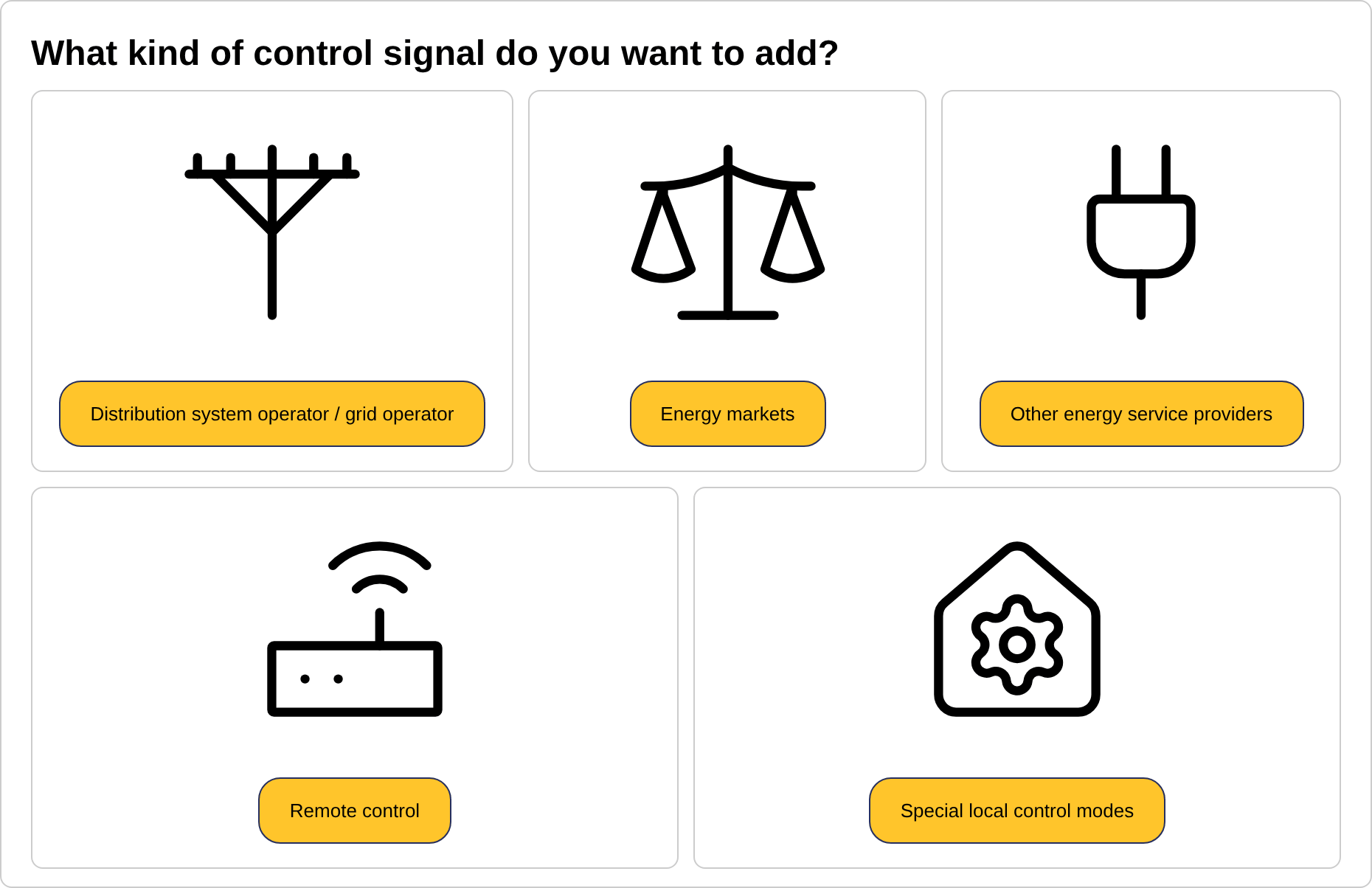
- Choose the kind of control signal: Distribution system operator / grid operator, Energy markets, Other energy service providers, Remote control (the MQTT and API based control by your own software) or Special local control modes (see Special local control modes).
- Choose the provider from the list. If your provider is not listed, contact your installer to request a new integration.
- Choose the signal of the provider, if it offers more than one.
- Some signals show their terms and conditions first; scroll down and accept them to continue. Some signals show a manual with the steps to do at the side of the provider before continuing.
- Enter the user inputs of the signal, for example an API key, a contract number or a threshold. The page of the signal explains what to enter.
- Select the devices to which the signal applies. Only devices that are compatible with the signal are listed. By default "Select all" and "Always apply this external signal to all devices that are compatible with it, including devices that are newly added later" are ticked, so the signal covers every compatible device now and in the future; this is the usual choice for a signal of a grid operator or an energy supplier. To apply the signal to specific devices only, untick both options and tick the devices one by one. Click "Apply signal to selected devices".
Caution
You can only add every external control signal once. Adding it again overwrites the previous configuration. Use "Edit external signal" to change the devices of an existing signal.
Managing the known external signals
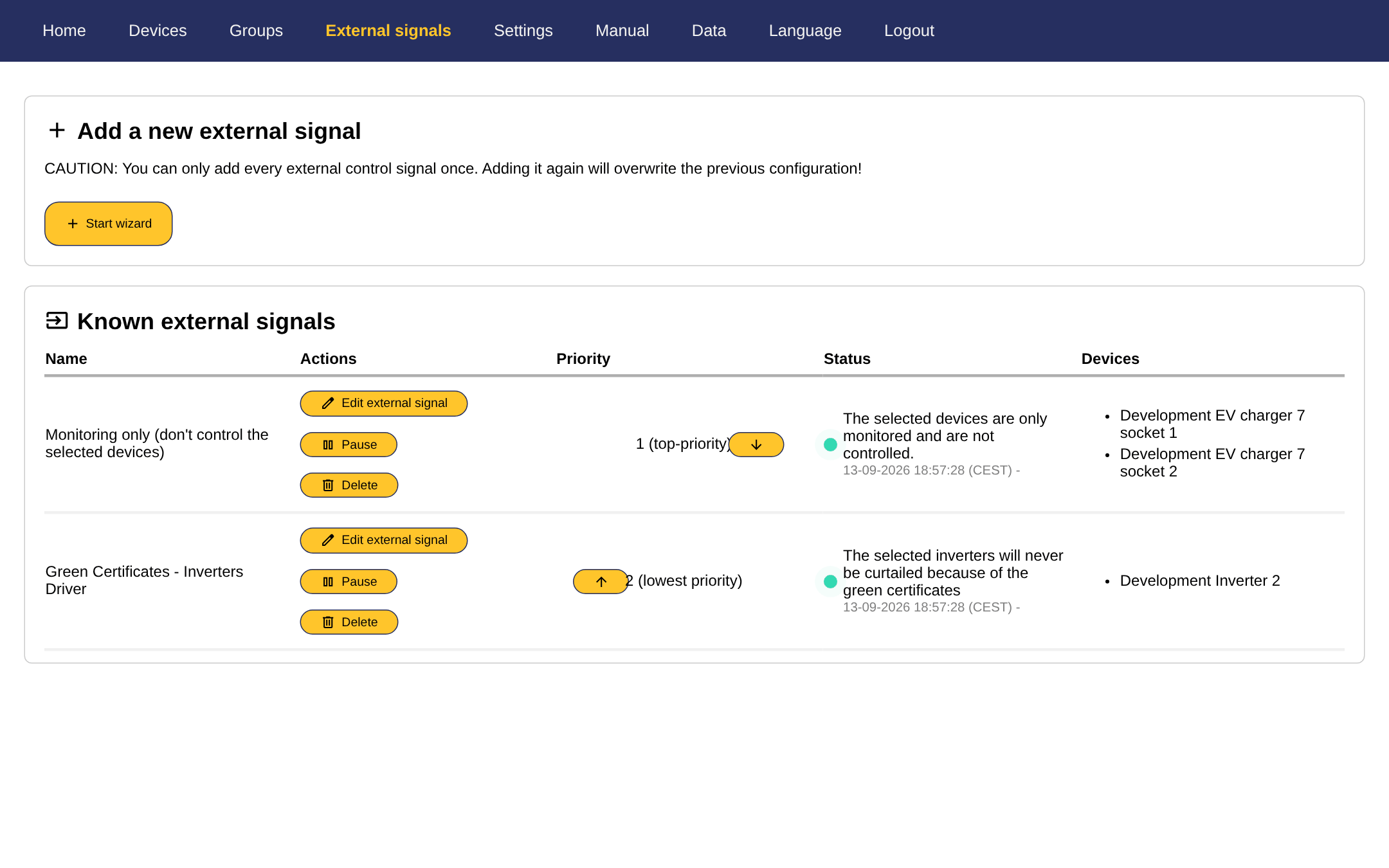
The 'External signals' tab lists the known signals with their devices and, for the signals that report it, their status. The status shows the last feedback of the signal, for example that the connection to the provider is fine, or that it was lost; the time of the last feedback is shown next to it.
| Action | Effect |
|---|---|
| Edit external signal | Change the selected devices, or the option to apply the signal to all compatible devices. |
| Pause / Resume | Temporarily suspends the signal without deleting its configuration. The devices fall back to the next signal in the priority list, or to the default working mode. |
| Delete | Removes the signal. |
| Priority arrows | Move the signal up or down in the priority list, see below. |
Priority between signals
A device can be part of several signals. When two signals want to steer the same device, the signal that is highest in the priority list wins; the other signal keeps steering the devices they do not share. The list is numbered from 1 (top priority) to the lowest priority; use the arrows in the "Priority" column to change the order. Special local control modes share this list with the external signals.
Tip
Put a grid operator (DSO) signal on top: it must always be able to limit the devices, whatever the other signals do.
When a signal is not active
When a signal is paused, has no valid data or does not send a command for a device, the device follows the next signal in the list that covers it, or otherwise the default working mode of its device type. The grid limits are always respected, whatever the signal asks.